Artificial Satellites
Tutorial
TUTORIAL TO BECOME A SATELLITE TRACKER
First time observing a satellite? Read this page to master your Unistellar telescope and join our team of Satellite Trackers.
Note: The following tutorial is for the devices with Unistellar app version 3.6.0 or later. Earlier versions of the app will not have a standalone “Satellite Surveillance” mode.
PRE-OBSERVATION
1 – Find your target
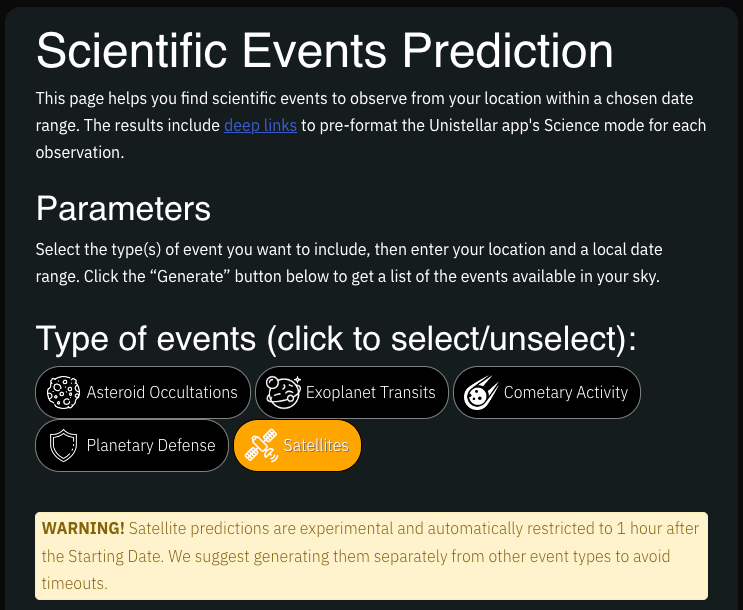
To get started, you have to select a target suitable for your location. Go to our Missions page or access the Scientific Events Prediction page directly and select an event you want to observe. From the Scientific Events Prediction page:
- Deselect all types of events except for satellites.
- Input your observing location by searching for an address, giving an observing latitude and longitude, or automatically determine your observing location by clicking the “bullseye” button
- Choose your observing time – Remember that satellites are most visible just after sunset or just before sunrise
- Click “Generate” in the bottom right corner and a list of satellite targets will be created after a few moments.
2 – Read Your Mission Details
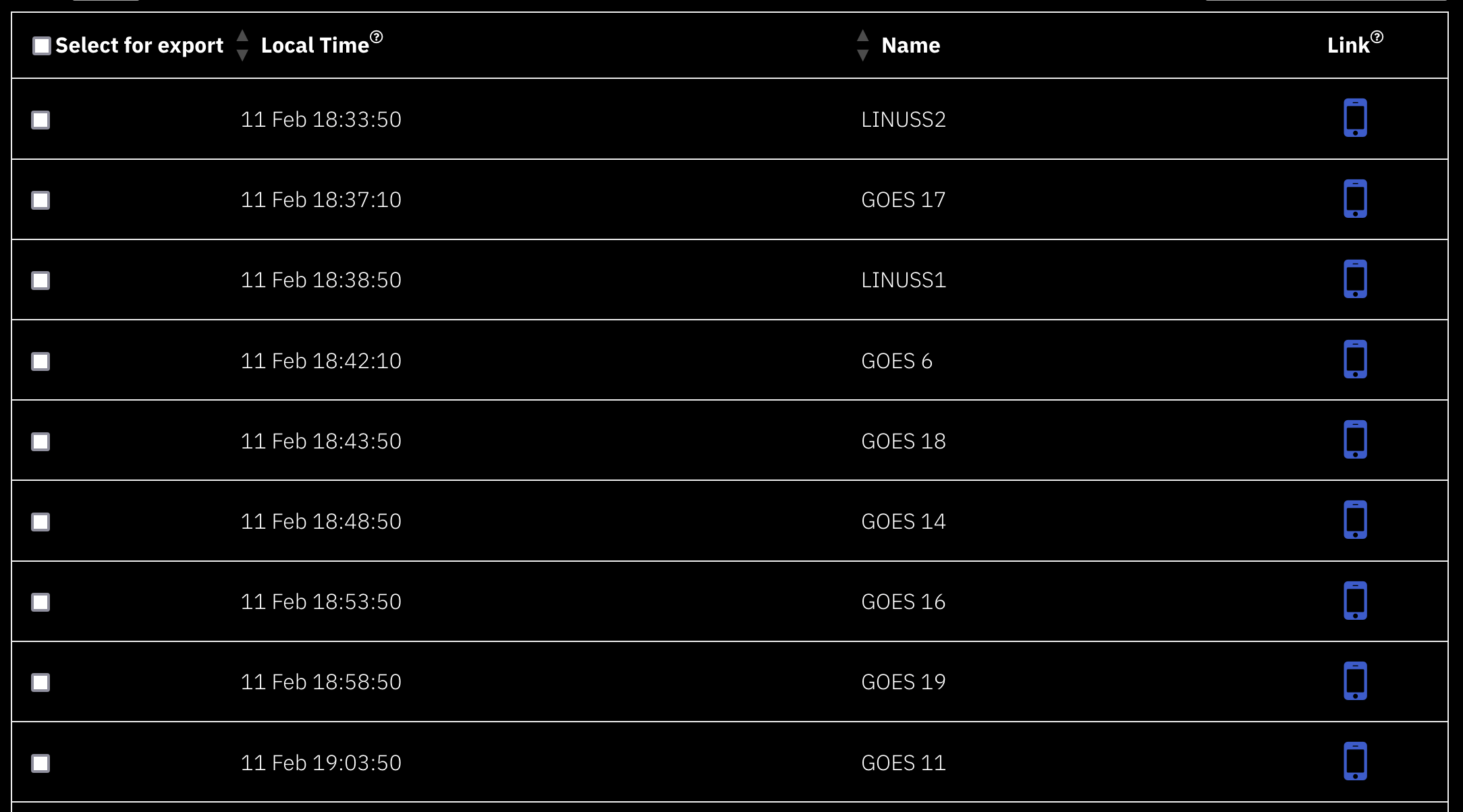
Once you have generated a list of potential targets based on your location, choose one with a start time (the Local Time column) occurring at least 5 minutes from now so that the eVscope has time to slew to the target. Clicking or tapping on the event will expand it to give you more information such as the altitude and location in the sky.
To easily load all of that information into the Unistellar App with a Deep Link, click the smartphone icon in the “Link” column of the event list (or the button at the bottom of the expanded row). Doing so should automatically take you to the Unistellar App with the necessary information pre-filled.
OBSERVATION
3 – 5 Minutes Before Your Mission
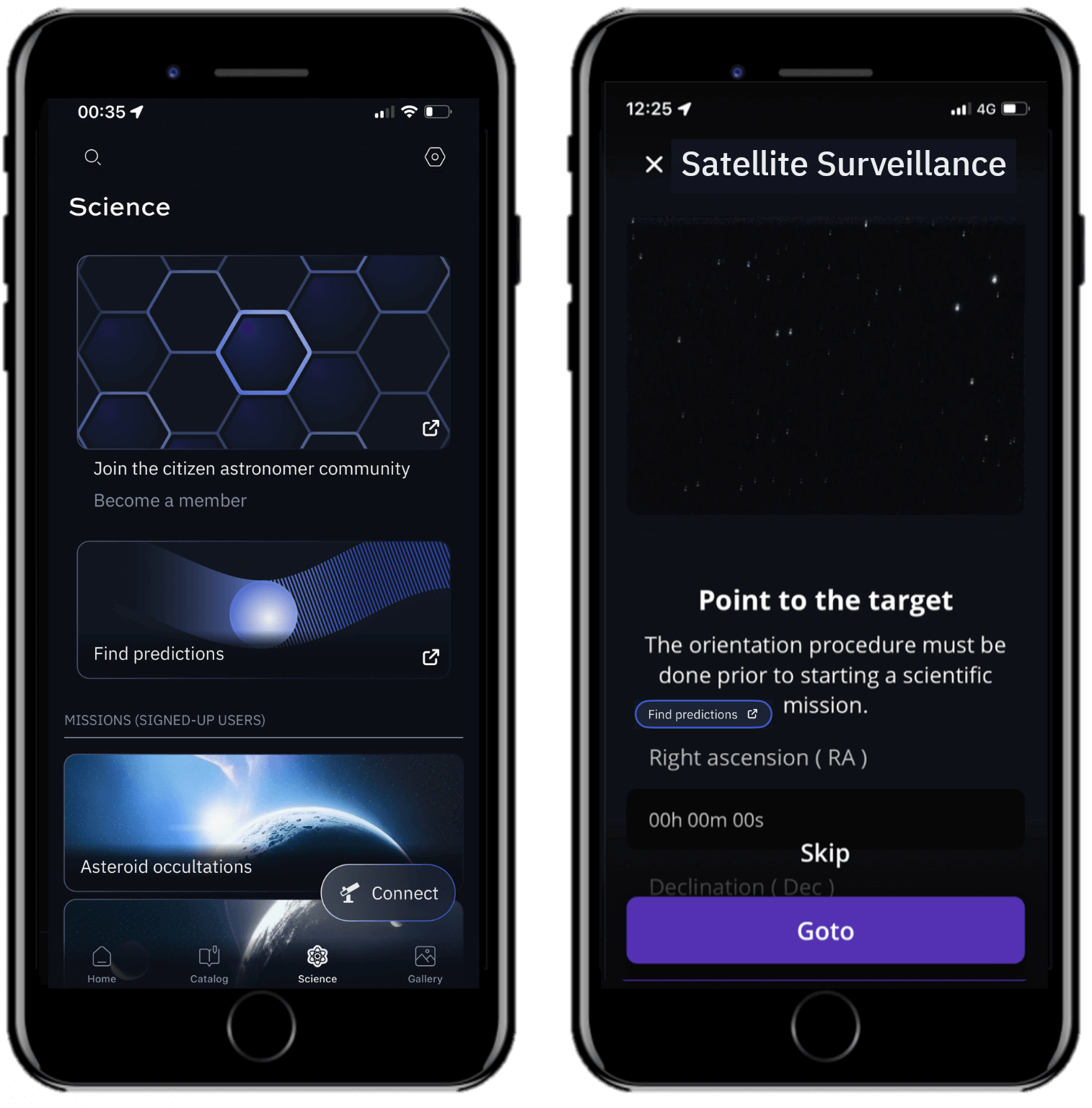
Once your Unistellar telescope is set to observe the night sky and you have chosen a satellite target, it is time to point your telescope.
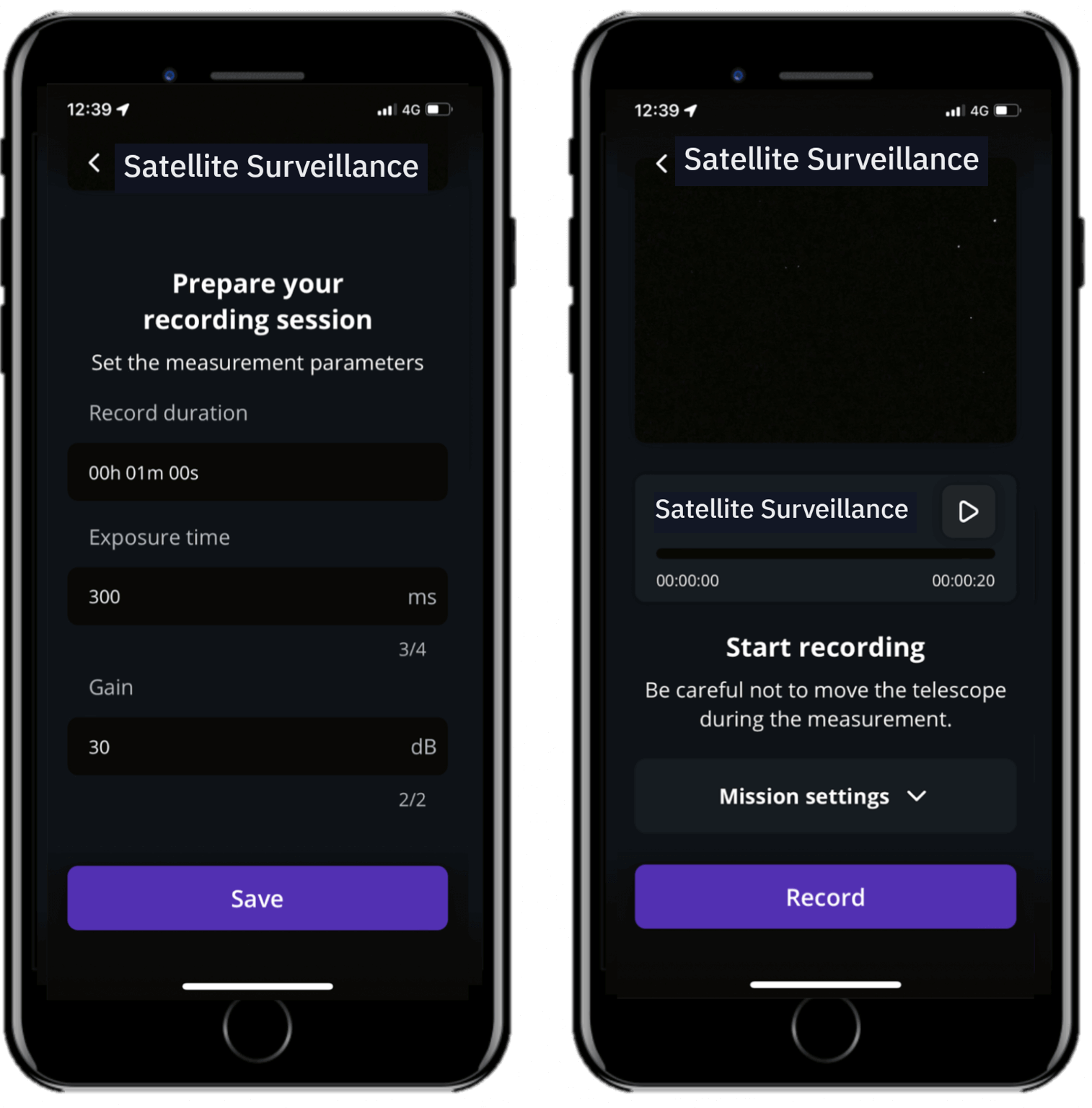
Currently there is only one way to take satellite data and have it processed — you must use the Deep Link associated with your event. It will automatically open your Unistellar App using the Satellite Surveillance mode, filling in the coordinates of the target and its recording parameters. When the Right Ascension and Declination boxes are filled with the correct coordinates, click on Goto to point to your target. Once the Goto is done, if the Record duration, Exposure time, and Gain are correct, click on Save.
4 – Launch Observation
The Local Time column on the predictions page indicates when you will need to begin. When the time comes click on the Record button to start the observation. Satellites are very quick, often staying on screen for less than a second. Keep a sharp eye on the screen to see it whiz by.
Note: While observing the screen may go dark at the beginning and end of the observation. This is normal! Satellite Surveillance mode will automatically take longer exposure images of the sky at the beginning and end of the observation so we can properly measure the satellite’s brightness.
POST-OBSERVATION
5 – Share your data
Once you are at home, please upload your data to our server. Our team of scientists will analyze your observation to check if you detected the satellite. If you need help, please read these guidelines on “how to upload my data”.
6 – Tell Unistellar you participated
To make sure your contribution is properly processed and you are credited for the result, always fill out this Satellite Observation Report. It asks for your name, the serial number of your telescope, the name of the scientific mission you just accomplished, and a few other helpful pieces of information.
We will send you the result of your scientific mission through our Slack communication platform within 24 hours.
Great Work, Citizen Astronomer.